Crypto Wallet Setup for Beginners: Complete Tutorial 2025
Introduction
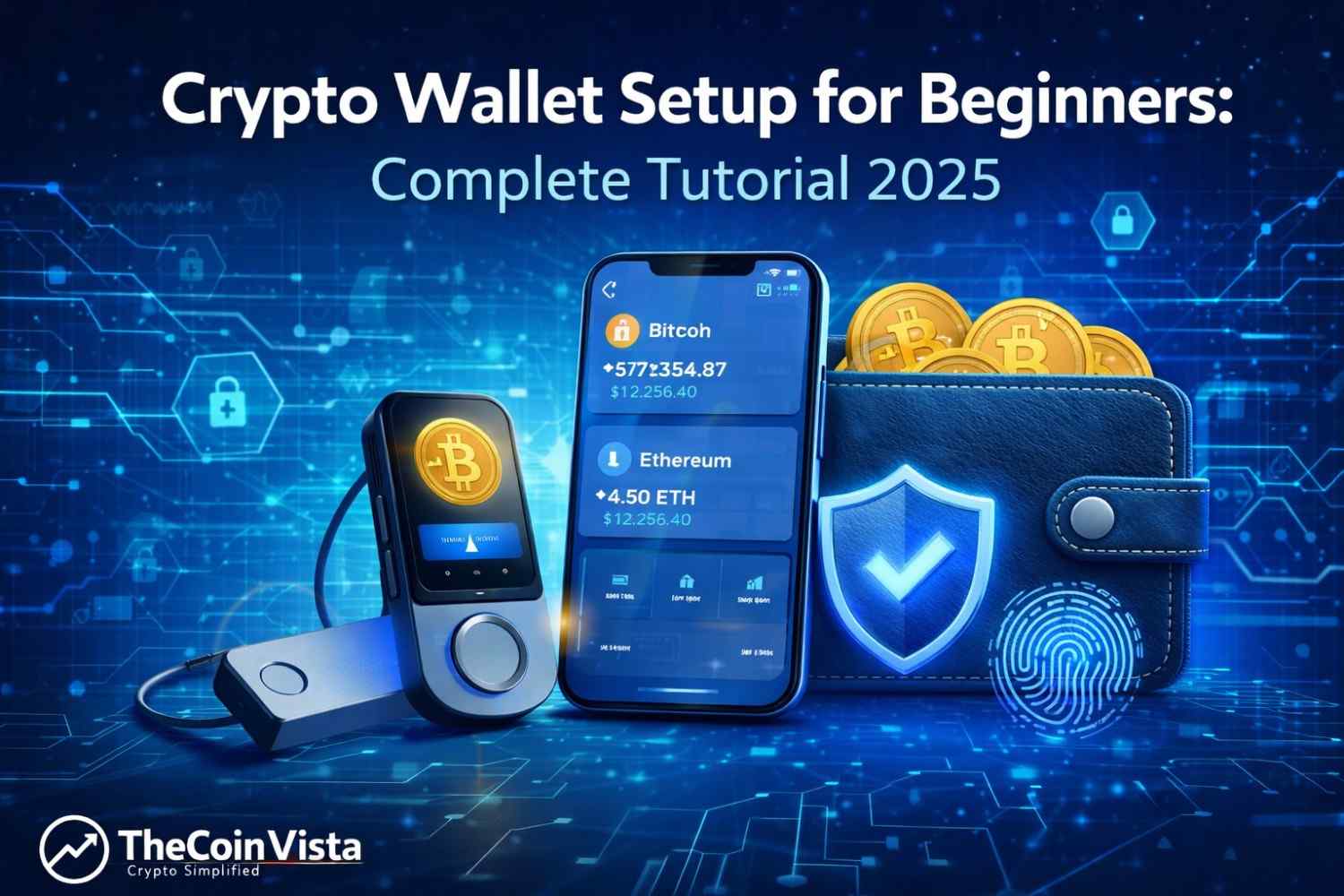
Setting up a cryptocurrency wallet is the first critical step in your crypto journey. Without a proper wallet, you cannot securely store, send, or receive digital assets like Bitcoin, Ethereum, or other cryptocurrencies. This comprehensive guide will walk you through everything you need to know about crypto wallets and how to set one up safely in 2025.
Whether you’re a complete beginner or looking to upgrade your crypto security, this tutorial covers all wallet types, step-by-step setup instructions, and essential security practices to protect your digital assets.
What is a Crypto Wallet?
A cryptocurrency wallet is a digital tool that allows you to store, send, and receive cryptocurrencies. Unlike traditional wallets that hold physical cash, crypto wallets don’t actually store your coins. Instead, they store the private keys that give you access to your cryptocurrency on the blockchain.
Think of it this way: your crypto exists on the blockchain (a public ledger), and your wallet holds the keys to access and control those funds. Without your private keys, you cannot access your cryptocurrency.
Key Components of a Crypto Wallet
Public Key (Wallet Address)
- Similar to your bank account number
- Safe to share with others
- Used to receive cryptocurrency
- Example: 1A1zP1eP5QGefi2DMPTfTL5SLmv7DivfNa
Private Key
- Like your bank account password
- NEVER share with anyone
- Gives complete control over your funds
- If lost, your crypto is gone forever
Seed Phrase (Recovery Phrase)
- 12-24 random words
- Used to recover your wallet
- Acts as a backup of your private keys
- Must be stored securely offline
Types of Crypto Wallets Explained
Understanding different wallet types is crucial before setup:
Hot Wallets (Internet-Connected)
Mobile Wallets
- Apps on your smartphone
- Convenient for daily transactions
- Examples: Trust Wallet, Coinbase Wallet, MetaMask Mobile
- Best for: Small amounts, frequent use
Desktop Wallets
- Software installed on your computer
- More secure than mobile
- Examples: Exodus, Electrum, Atomic Wallet
- Best for: Medium amounts, regular trading
Web Wallets
- Accessed through browsers
- Most convenient but least secure
- Examples: MetaMask, Coinbase, Blockchain.com
- Best for: Beginners, small amounts
Pros of Hot Wallets:
- Easy to use
- Quick access to funds
- Free or low-cost
- Great for beginners
Cons of Hot Wallets:
- Vulnerable to hacking
- Require internet connection
- Less secure for large amounts
Cold Wallets (Offline Storage)
Hardware Wallets
- Physical devices like USB drives
- Maximum security for crypto
- Examples: Ledger Nano X, Trezor Model T
- Cost: $50-$200
- Best for: Long-term storage, large amounts
Paper Wallets
- Private keys printed on paper
- Completely offline
- Free but risky if damaged
- Best for: Long-term storage, tech-savvy users
Pros of Cold Wallets:
- Highest security level
- Protected from online attacks
- Full control of private keys
- Ideal for large holdings
Cons of Cold Wallets:
- Less convenient for daily use
- Cost money (hardware wallets)
- Can be physically lost or damaged
- Learning curve for beginners
Which Wallet Should You Choose?
Your choice depends on your needs:
For Beginners (Under $500)
- Start with Trust Wallet or Coinbase Wallet
- Easy setup, user-friendly
- Good security for small amounts
For Regular Traders ($500-$5,000)
- Use Exodus or Atomic Wallet
- Better features, multi-currency support
- Desktop + mobile combination
For Serious Investors ($5,000+)
- Get a hardware wallet (Ledger or Trezor)
- Maximum security
- Keep majority of funds offline
Best Strategy: Combination Approach
- Hot wallet for 10-20% of holdings (spending money)
- Cold wallet for 80-90% of holdings (savings)
Step-by-Step: Setting Up Trust Wallet (Mobile)
Trust Wallet is one of the most popular mobile wallets for beginners. Here’s how to set it up:
Step 1: Download the App
- Visit the App Store (iOS) or Google Play Store (Android)
- Search for “Trust Wallet”
- Verify it’s the official app (by DApps Platform Inc)
- Download and install
Warning: Never download wallet apps from unofficial sources or websites. Only use official app stores.
Step 2: Create a New Wallet
- Open Trust Wallet
- Tap “Create a new wallet”
- Read and accept the Terms of Service
- Set up a 6-digit PIN or biometric authentication
Step 3: Backup Your Recovery Phrase
This is the MOST IMPORTANT step:
- Trust Wallet will show you 12 random words
- Write them down on paper in exact order
- Use the backup card provided or secure paper
- NEVER take screenshots or store digitally
- NEVER share with anyone
Example recovery phrase format:
- apple
- bridge
- castle
- danger
- elephant … (and so on to 12)
Step 4: Verify Your Recovery Phrase
- Trust Wallet will ask you to confirm the words
- Select them in the correct order
- This ensures you wrote them down correctly
- Complete the verification
Step 5: Enable Security Features
- Turn on biometric authentication (Face ID/fingerprint)
- Enable transaction signing
- Set up notification preferences
- Review security settings
Step 6: Add Cryptocurrencies
- Tap the filter icon
- Search for cryptocurrencies you want (Bitcoin, Ethereum, etc.)
- Toggle them on to display in your wallet
- Your wallet addresses will be automatically generated
Step 7: Receive Your First Crypto
- Select the cryptocurrency you want to receive
- Tap “Receive”
- Copy your wallet address or show the QR code
- Share this address with the sender
- Wait for the transaction to confirm
Congratulations! Your Trust Wallet is now set up and ready to use.
Step-by-Step: Setting Up MetaMask (Browser Extension)
MetaMask is the most popular wallet for Ethereum and DeFi applications:
Step 1: Install MetaMask Extension
- Visit metamask.io (official website only)
- Click “Download”
- Select your browser (Chrome, Firefox, Brave, Edge)
- Add the extension to your browser
- Pin it to your toolbar for easy access
Step 2: Create a Wallet
- Click the MetaMask icon
- Select “Create a wallet”
- Agree to the Terms of Use
- Create a strong password (minimum 8 characters)
- Click “Create”
Step 3: Secure Your Seed Phrase
- MetaMask shows you 12 secret recovery words
- Click “Reveal Secret Recovery Phrase”
- Write down all 12 words in order
- Store in a secure location
- NEVER store on your computer or cloud
Step 4: Confirm Your Seed Phrase
- Select the words in the correct order
- Verify you’ve backed up correctly
- Complete the setup
Step 5: Customize Your Wallet
- Click the account icon
- Name your account (e.g., “Main Wallet”)
- Explore settings and preferences
- Enable advanced features if needed
Step 6: Add Networks (Optional)
MetaMask defaults to Ethereum, but you can add other networks:
- Click the network dropdown (shows “Ethereum Mainnet”)
- Select “Add Network”
- Enter network details for Binance Smart Chain, Polygon, etc.
- Save and switch between networks
Step 7: Receive Cryptocurrency
- Click your account name to copy address
- Share this address to receive ETH or tokens
- Your address starts with “0x…”
- Check transactions in the Activity tab
Step-by-Step: Setting Up a Hardware Wallet (Ledger Nano X)
For serious crypto investors, hardware wallets offer maximum security:
Step 1: Purchase from Official Source
- Buy ONLY from ledger.com or authorized retailers
- NEVER buy used hardware wallets
- Verify the packaging is sealed and untampered
- Check for the authenticity certificate
Step 2: Unbox and Connect
- Open the package carefully
- Connect Ledger to your computer via USB
- Download Ledger Live app from ledger.com
- Install and open Ledger Live
Step 3: Initialize Your Device
- Press both buttons to start
- Select “Set up as new device”
- Choose a 4-8 digit PIN
- Confirm your PIN
- Write down your 24-word recovery phrase
Step 4: Write Down Recovery Phrase
- Ledger will display 24 words one by one
- Write them on the recovery sheet provided
- Use the included pen (avoid ballpoint pens that fade)
- Store in a fireproof safe or safety deposit box
- Consider making a backup copy (separate location)
Step 5: Verify Recovery Phrase
- The device will ask you to confirm random words
- Select the correct words from the device
- Verify all 24 words are correct
Step 6: Install Apps on Ledger
- Open Ledger Live on your computer
- Go to “Manager” section
- Install apps for cryptocurrencies you own (Bitcoin, Ethereum, etc.)
- Each crypto requires its own app on the device
Step 7: Add Accounts
- Click “Add account” in Ledger Live
- Select the cryptocurrency
- Follow the on-screen instructions
- Your Ledger generates secure addresses
Step 8: Receive Crypto to Hardware Wallet
- Select the account in Ledger Live
- Click “Receive”
- Verify the address on your Ledger device screen
- Copy the address and use it to receive funds
- Always verify addresses on the device screen
Essential Security Best Practices
Protecting your crypto wallet is critical. Follow these rules:
Recovery Phrase Security
DO:
- Write it down on paper or metal
- Store in multiple secure locations
- Use a fireproof and waterproof safe
- Consider splitting into multiple locations
- Tell a trusted person where it is (in case of emergency)
DON’T:
- Take screenshots or photos
- Store in email or cloud storage
- Share with anyone (even support staff)
- Store on your computer or phone
- Memorize only (you might forget)
Password Protection
- Use unique passwords for each wallet
- Minimum 12 characters with symbols
- Use a password manager (LastPass, 1Password)
- Enable two-factor authentication where available
- Change passwords every 6 months
Phishing Protection
- Bookmark official wallet websites
- Verify URLs before entering information
- Never click links in emails claiming to be from wallets
- Wallet companies never ask for your seed phrase
- Be skeptical of “urgent” security messages
Transaction Safety
- Always verify recipient addresses carefully
- Start with a small test transaction first
- Double-check addresses match exactly (first and last 4 characters)
- Use address books for frequent recipients
- Never rush large transactions
Device Security
- Keep software and apps updated
- Use antivirus protection
- Avoid public WiFi for transactions
- Enable device encryption
- Use separate devices for large holdings
Common Wallet Setup Mistakes to Avoid
Mistake 1: Not Backing Up Recovery Phrase
Result: If you lose your device, your crypto is gone forever. Solution: Write down your seed phrase immediately during setup.
Mistake 2: Storing Seed Phrase Digitally
Result: Hackers can access cloud storage and steal your crypto. Solution: Only use physical, offline storage methods.
Mistake 3: Using the Same Password Everywhere
Result: If one account is hacked, all accounts are compromised. Solution: Use unique passwords for each wallet and service.
Mistake 4: Not Verifying Addresses
Result: Sending crypto to wrong address means permanent loss. Solution: Always check the full address before confirming transactions.
Mistake 5: Downloading Fake Wallet Apps
Result: Scam apps steal your private keys and funds. Solution: Only download from official websites and app stores.
Mistake 6: Sharing Your Screen During Setup
Result: Others can see and steal your recovery phrase. Solution: Set up your wallet in private, alone.
Mistake 7: Keeping All Crypto in Exchange Wallets
Result: If the exchange is hacked or goes bankrupt, you lose everything. Solution: Move most funds to your personal wallet (self-custody).
How to Send Cryptocurrency from Your Wallet
Once your wallet is set up, here’s how to send crypto:
Step 1: Get the Recipient’s Address
- Ask for their complete wallet address
- Verify it’s for the correct cryptocurrency and network
- Double-check the address format
Step 2: Open Your Wallet
- Select the cryptocurrency you want to send
- Click “Send” or “Transfer”
Step 3: Enter Details
- Paste the recipient’s address
- Enter the amount to send
- Select the network fee (gas fee)
- Review the total cost including fees
Step 4: Verify Everything
- Check the address matches exactly
- Verify the amount is correct
- Confirm the network (Ethereum, BSC, etc.)
- Review the transaction fee
Step 5: Confirm and Send
- Approve the transaction in your wallet
- Sign with your password or biometric
- Wait for blockchain confirmation
- Save the transaction hash for tracking
Pro Tip: Always send a small test amount first (like $5-10) before sending large sums.
Understanding Wallet Fees
Different wallets have different fee structures:
Network Fees (Gas Fees)
- Paid to blockchain miners/validators
- Varies by network congestion
- Bitcoin: $1-$10 typically
- Ethereum: $2-$50+ (can be very high)
- BSC/Polygon: $0.10-$1 (much cheaper)
Wallet Software Fees
- Most wallets are free to use
- Some charge for advanced features
- Hardware wallets cost $50-$200 upfront
- No monthly subscription fees
Exchange Fees (if using exchange wallets)
- Withdrawal fees to external wallets
- Trading fees on the platform
- Can be 0.1% to 3% per transaction
Multi-Signature Wallets for Advanced Security
For businesses or large holdings, consider multi-sig wallets:
What is Multi-Sig?
- Requires multiple approvals for transactions
- Example: 2 out of 3 people must approve
- Prevents single point of failure
- Popular options: Gnosis Safe, Electrum
Benefits:
- Enhanced security
- Shared control
- Protection against theft or loss
- Ideal for companies or partnerships
Recovering Your Wallet
If you lose your device or need to access your wallet elsewhere:
Using Recovery Phrase
Step 1: Install the same wallet app on a new device Step 2: Select “Import wallet” or “Restore wallet” Step 3: Enter your 12-24 word recovery phrase in order Step 4: Set a new password Step 5: Your wallet and funds will be restored
Important: Your recovery phrase works across compatible wallets. For example, Trust Wallet seed phrases work in MetaMask and other wallets.
If You Lost Your Recovery Phrase
Unfortunately, if you lose both your device AND recovery phrase:
- Your crypto is permanently lost
- No company or person can recover it
- This is why backup is absolutely critical
- There is NO customer service that can help
Wallet Management Best Practices
Regular Maintenance
- Check for wallet updates monthly
- Review your security settings quarterly
- Test your recovery process once
- Update your backup locations if you move
- Verify your seed phrase backup annually
Portfolio Organization
- Use different wallets for different purposes
- Main wallet for long-term holdings
- Trading wallet for active use
- Testing wallet for new tokens
- Label accounts clearly
Privacy Considerations
- Use different addresses for different transactions
- Don’t reuse addresses when possible
- Consider privacy coins for sensitive transactions
- Be careful sharing wallet addresses publicly
- Use VPN when accessing wallets on public networks
Top Crypto Wallets Comparison 2025
Best Mobile Wallets
Trust Wallet
- Pros: User-friendly, supports 70+ blockchains, built-in DApp browser
- Cons: Less features than desktop wallets
- Best for: Beginners, mobile-first users
Coinbase Wallet
- Pros: Easy integration with Coinbase exchange, great UI
- Cons: Limited advanced features
- Best for: Coinbase users, NFT collectors
Exodus Mobile
- Pros: Beautiful interface, built-in exchange
- Cons: Higher exchange fees
- Best for: Visual learners, portfolio tracking
Best Desktop Wallets
Exodus
- Pros: Stunning design, 24/7 support, portfolio tracker
- Cons: Not open-source
- Best for: Beginners to intermediate users
Electrum
- Pros: Bitcoin-focused, highly secure, open-source
- Cons: Dated interface, Bitcoin only
- Best for: Bitcoin maximalists, advanced users
Atomic Wallet
- Pros: Supports 500+ coins, atomic swaps, staking
- Cons: Customer service issues
- Best for: Multi-coin holders
Best Hardware Wallets
Ledger Nano X
- Pros: Bluetooth, mobile app, supports 5,500+ coins
- Cons: $149 price, past data breach
- Best for: Serious investors, mobile management
Trezor Model T
- Pros: Touchscreen, open-source, excellent security
- Cons: $219 price, no mobile Bluetooth
- Best for: Security-focused users, large holdings
Ledger Nano S Plus
- Pros: Affordable at $79, compact, secure
- Cons: No Bluetooth, smaller screen
- Best for: Budget-conscious long-term holders
Frequently Asked Questions
Q: Can I have multiple crypto wallets?
A: Yes! In fact, it’s recommended. Use different wallets for different purposes and amounts.
Q: What happens if I forget my password?
A: You can recover your wallet using your seed phrase, but the password itself cannot be recovered.
Q: Are crypto wallets anonymous?
A: Wallets are pseudonymous, not fully anonymous. Transactions are public on the blockchain but not directly tied to your identity.
Q: Can someone steal my crypto if they know my wallet address?
A: No. Your public address is safe to share. They would need your private key or seed phrase to steal funds.
Q: Do I need a different wallet for each cryptocurrency?
A: No. Most modern wallets support multiple cryptocurrencies in one app.
Q: Can I change my wallet address?
A: Most wallets generate new addresses for each transaction, but your original addresses always remain valid.
Q: Is it safe to keep crypto on an exchange?
A: For long-term storage, no. Use exchange wallets only for trading. Move larger amounts to your personal wallet.
Q: What if my hardware wallet breaks?
A: Your crypto isn’t stored on the device. Use your recovery phrase to restore funds to a new hardware wallet.
Q: Can I recover a deleted wallet app?
A: Yes, as long as you have your recovery phrase. Reinstall the app and restore using your seed phrase.
Q: How often should I update my wallet?
A: Check for updates monthly and install them promptly for security patches and new features.
Conclusion
Setting up a crypto wallet is an essential skill for anyone entering the cryptocurrency space. Whether you choose a mobile wallet for convenience, a desktop wallet for regular use, or a hardware wallet for maximum security, the key is understanding how to set up and secure your wallet properly.
Remember these critical points:
- Always backup your recovery phrase offline
- Never share your private keys or seed phrase
- Use strong, unique passwords
- Enable all available security features
- Start with small amounts while learning
- Consider hardware wallets for large holdings
Your crypto wallet is your gateway to the decentralized financial world. Take the time to set it up correctly, secure it properly, and you’ll have peace of mind knowing your digital assets are safe.
Ready to set up your first wallet? Choose the type that fits your needs and follow the step-by-step instructions in this guide. Welcome to the world of cryptocurrency!